How to connect AI to a CRM with human approval
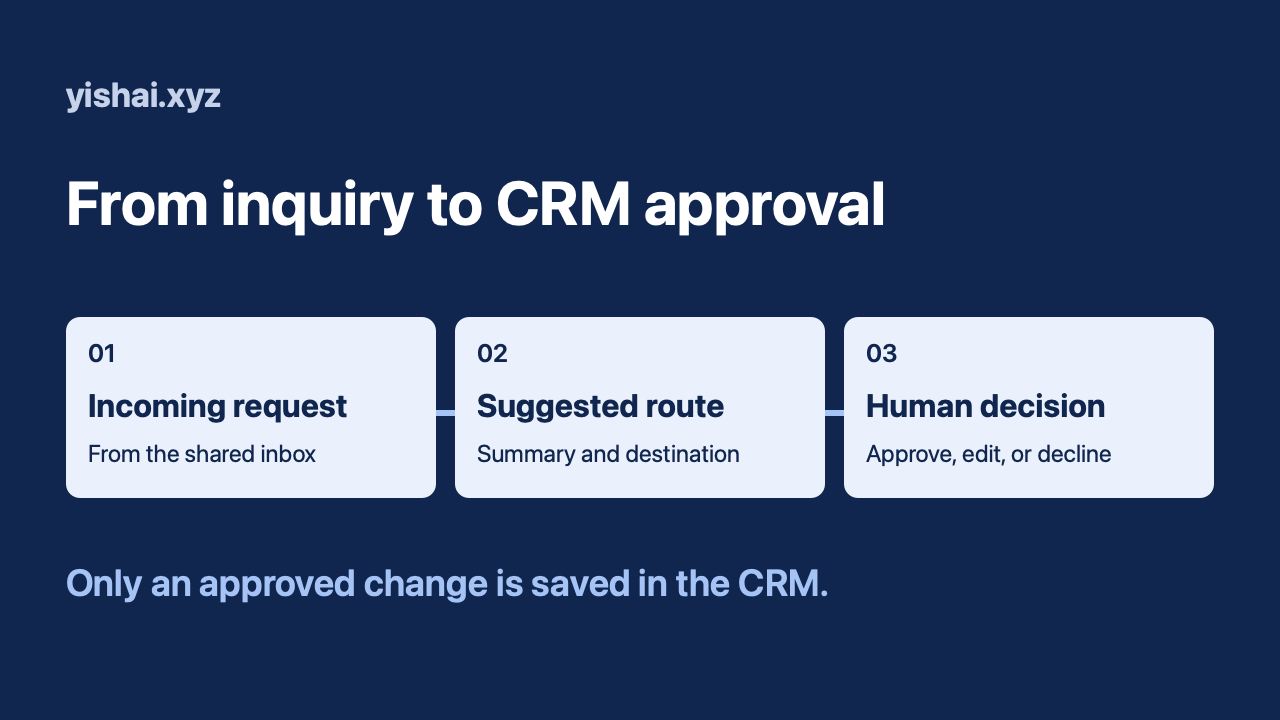
Let AI suggest a category and a short summary from an incoming request. Keep the CRM as the source of truth, and have the workflow validate and apply the update only after approval.
Decide which fields the integration may update
In a sample CRM, the existing record has an owner, a request ID, and the original message. The AI step reads the permitted part of the message and returns a proposed category, a summary, and the excerpt it used. It has no need to change the owner or read the full contact history.
If a category must come from a fixed list, enforce the list in the workflow. Show the original message next to the proposal so the reviewer can check for an invented fact, correct the summary, or leave the record unchanged.
Tie the approval to the record version
Store the reviewed proposal with the request ID and the version of the record it was based on. Before writing, check that the record has not changed. If someone edited it during review, show the new version and ask the reviewer to check again.
Use the same update ID if a connection times out. Check whether the update already succeeded before trying again. Store who approved the update, which fields changed, and the outcome. This makes it possible to resolve a timeout without writing twice.
A reviewer corrects a CRM assignment
In simulated inquiry CRM-208, a team asks for an inventory tool, then explains that its current tracker already works. The remaining task is to copy new rows from a spreadsheet into that tracker.
- Initial proposal
- The demo’s routing rule flags the inquiry for human review. The sample record is still at revision 1.
- Reviewer’s decision
- The reviewer assigns the work to the Automation team and adds one follow-up task. Confirm the source spreadsheet and the existing tracker’s unique ID.
- Saved record
- Approval saves the Automation category and the follow-up task. The same record advances to revision 2.
Test the path through approval
- The message mixes two requests
- It goes to review with both issues visible; neither is silently assigned.
- A reviewer corrects a category
- The CRM receives the corrected category. The log records the approved proposal and the update.
- The CRM times out after a successful write
- The retry checks the same update ID and leaves one change on the record.
- Another person edits the record before approval
- The workflow shows the newer record and holds the pending change.
See the webhook replay example to try duplicate and late events, and the bilingual inquiry routing dataset for sample messages.
What happened in 24 simulated inquiries
The check replayed 12 Hebrew and 12 English cases from the demo. A word-matching rule proposed a category. A scripted reviewer then approved, corrected, or declined the proposal, and the check compared the resulting sample record to the expected behavior.
- 10 assignments
- The approved category and follow-up were saved.
- 4 requests for clarification
- Each inquiry was saved in the review category.
- 2 category corrections
- The sample record saved the reviewer’s category.
- 4 repeated approvals
- Each replay preserved the first update at revision 2.
- 4 declines
- The proposed fields stayed unapplied and the record revision stayed at 1.
These fictional cases exercise the approval rules in a local simulation. Measuring model accuracy, human review time, or behavior in a live CRM requires separate tests.
To reproduce the check, run node --test ai-crm.test.mjs from the project checkout. The verification module also exports verifyCrmWorkflow() for inspection.
A small AI and CRM pilot
- Input
- Choose one entry point and a small set of permitted fields.
- Proposal
- Require a category, summary, and supporting excerpt.
- Approval
- Name the reviewer and keep the approved edit separate from the initial suggestion.
- Recovery
- Test duplicate writes, a changed record, and a timeout after a successful update.