How to connect a website form to a CRM without losing inquiries
For a website form to reach your CRM without losing inquiries you need three things: a direct connection or one through an automation tool, matching to an existing customer by email or phone to avoid duplicates, and a fallback for failures, so every inquiry is saved and someone is alerted. Test all of it with a real submission from a phone before launch.
What are the ways to connect a form to a CRM?
| Method | When it fits | Watch out for |
|---|---|---|
| Built-in connector or plugin | When the site and the CRM support each other | Which fields pass through, and what happens on updates |
| Automation tool | When you need several steps, such as CRM and email | A monthly subscription, and who sees failures |
| Direct API connection | When you need checks, rules or several systems | Development and upkeep, and keeping keys on the server |
Avoid connections that read the form's notification emails and try to parse them. Any small change in wording breaks them.
How do you prevent duplicates?
Before creating a new contact, look for an existing customer by email address or phone number. If one exists, add the new inquiry to it instead of opening another record. That keeps each customer's history in one place.
What happens when the connection fails?
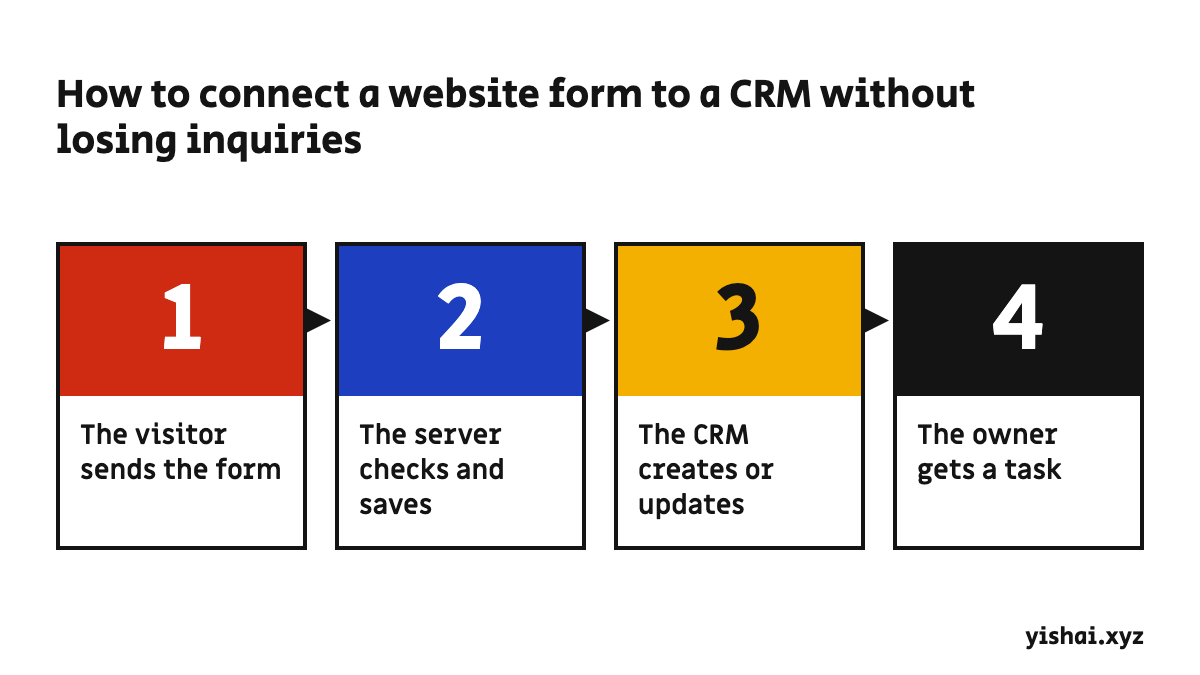
The form saves every submission itself before sending it to the CRM. If the CRM is unavailable, the system retries after a few minutes and, after several attempts, sends an alert. The visitor gets a confirmation either way, because their inquiry was saved.
How do you keep the CRM free of spam?
- An anti-spam check that is invisible to visitors, with no puzzles.
- A check that required fields are filled in and correctly formatted.
- A limit on submissions from the same source in a short time.
How do you test before launch?
Send a real inquiry from a phone, in Hebrew and in English, with an empty field and with a special character. Check that it reached the CRM with every field, that a task was created for the owner, and that the visitor got a confirmation. Send again with the same email and check that no duplicate record was created.
What to prepare before connecting
- Fields
- The form fields, and where each one goes in the CRM.
- Matching
- How an existing customer is recognised: email, phone or both.
- Owner
- Who gets each type of inquiry, and how fast.
- Failure
- Who is alerted when the connection fails.